There’s a moment every finance or warehouse team knows too well.
A client calls and says, “We don’t understand this invoice.”
Not because the charges are wrong, but because the presentation makes it hard to follow.
Periodic invoices, especially in warehouse and product logistics environments, often bundle multiple jobs, storage charges, receive transactions, and orders into one billing cycle. If those charges aren’t grouped clearly, even accurate billing can create confusion.
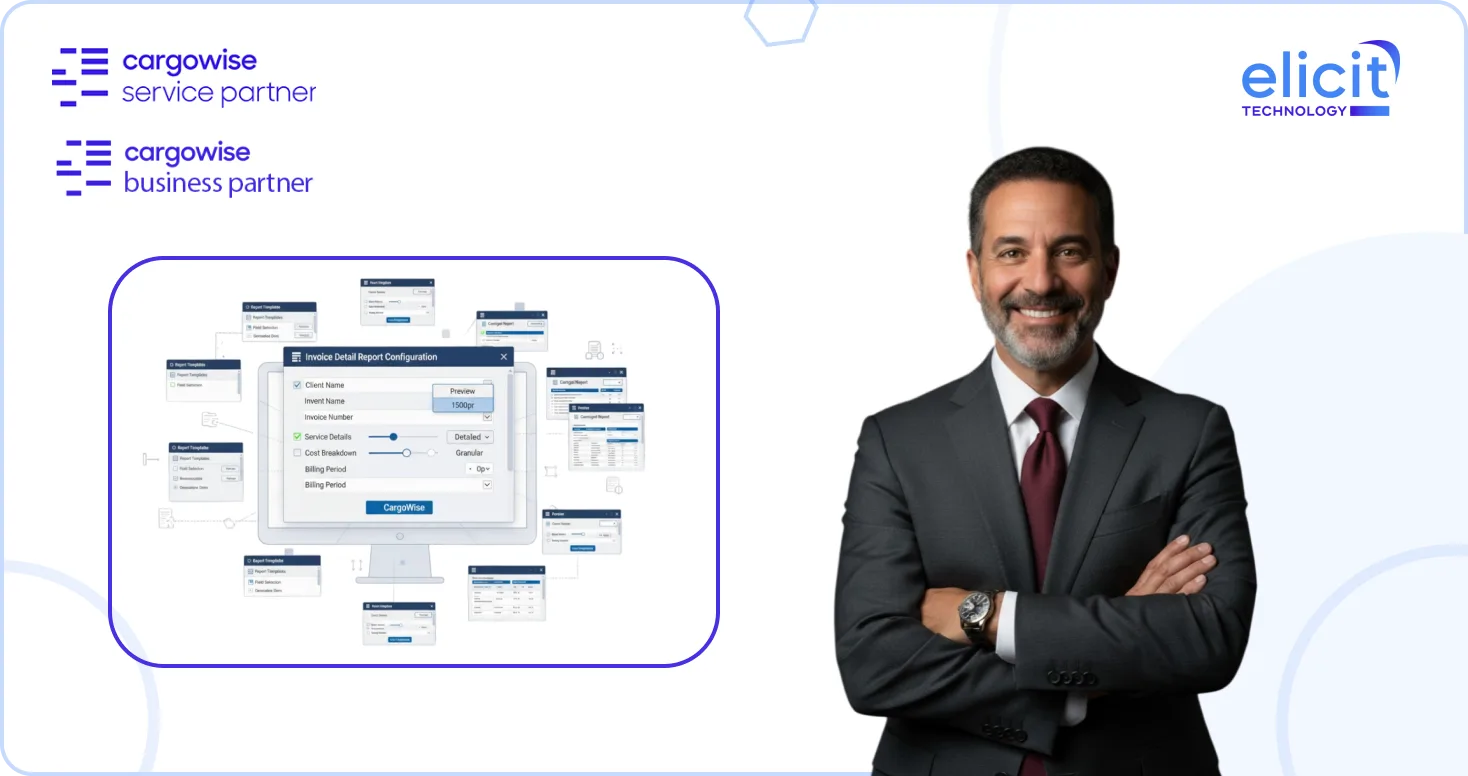
That’s exactly why the Invoice Detail Report in CargoWise matters. When configured properly, it turns a complex periodic invoice into a structured, easy-to-read breakdown that your clients can actually understand.
Let’s walk through how to configure it and how to make it work strategically for your business.
What is the Periodic Invoice Detail Report?
The Periodic Invoice Detail Report is an attached document that supports a periodic invoice. Instead of presenting charges in one long list, it organizes them into logical groupings.
For warehouse, storage, and product-based billing environments, this report helps answer three key client questions:
- What was I charged for?
- Which job or order does this relate to?
- How were these totals calculated?
When structured correctly, it reduces billing disputes, shortens payment cycles, and builds trust with your clients.
Why Charge Grouping Matters More than You Think?
In a typical warehouse environment, charges may include:
- Receive jobs (Inwards)
- Orders
- Storage fees
- Handling charges
- Miscellaneous service fees
If these charges are not grouped logically, clients may struggle to connect fees to operational activity.
For example, if a client sees storage charges mixed randomly with inbound handling, they may question the invoice, even if it’s correct.
Grouping charges by Job Type, Docket Reference, or other relevant fields creates clarity.
And clarity speeds up approvals.
Where to Configure the Invoice Detail Report?
To configure how charges appear on the Periodic Invoice Detail Report, start with an existing periodic invoice and preview the detail report.
You’ll typically see charges grouped by Job Type, such as:
- Inwards (Receive jobs)
- Orders
- Storage
To modify this grouping structure:
- Open the Organization record.
- Navigate to the Whs/Facility tab.
- Select the Product Warehouse tab.
- Click on the Invoicing tab.
- Locate the Invoice Detail Report section.
This is where grouping logic is defined.
Configuring the Group By Options
Within the Invoice Detail Report section, you’ll see dropdown options labeled:
- 1st Group By
- 2nd Group By
By default, many organizations use Job Type as the 1st Group By setting. These groups charge into high-level operational categories.
If you want more detailed breakdowns, you can add another layer.
For example:
- Leave Job Type as the 1st Group By.
- Select DRE – Docket Reference as the 2nd Group By.
- After saving the changes, preview the Invoice Detail Report again.
Now, charges will be grouped first by Job Type and then by Docket Reference.
This allows you to see exactly what each receives, or orders has been charged, making the report much more transparent.
What Happens When Grouping isn’t Possible?
Sometimes, a charge cannot be grouped under your selected option.
When that happens, CargoWise displays the word “None” under that grouping category.
For example, storage charges may show “None” under Docket Reference because storage transactions typically don’t carry docket references.
This doesn’t indicate an error, it simply means that the selected grouping field doesn’t apply to that charge type.
Understanding this behavior is important to avoid confusion when reviewing reports internally.
Testing and Reprinting for Best Results
One of the most helpful features is flexibility.
You can adjust grouping settings, save them, and then:
- Reprint the invoice
- Preview the report again
- Compare formatting options
This makes it easy to experiment with different combinations until you find the format that works best for your clients.
There’s no need to worry about permanent changes. You can refine the layout as your billing structure evolves.
Registry Configuration for Consistency
If you want these grouping rules to apply automatically to new organizations, you can configure them at the Registry level.
By setting default Invoice Detail Report grouping options in the registry:
- Every new organization record inherits the same configuration.
- Billing consistency is maintained across branches.
- Manual setup time is reduced.
This is especially valuable for multi-branch or multi-warehouse operations.
Standardized invoice presentation creates a professional and consistent client experience.
Practical Tips for Choosing the Right Grouping Strategy
When deciding how to group charges, consider:
- How your clients think about their operations.
- Whether they prefer job-level or transaction-level visibility.
- Whether storage and handling should be separate sections.
- Whether docket references are meaningful to them.
Some businesses prefer high-level grouping by Job Type only.
Others benefit from detailed grouping by:
- Job Type + Docket Reference
- Job Type + Order Number
- Job Type + Product Category (if applicable)
The best configuration depends on your client base and operational model.
There is no universal “correct” setting, only what makes billing clearer.
Reducing Disputes Through Smart Configuration
Well-configured Invoice Detail Reports reduce:
- Billing disputes
- Credit note requests
- Finance back-and-forth
- Delays in payment approval
Clients are more likely to approve invoices quickly when they can clearly trace charges to operational events.
Finance teams benefit too. When grouping aligns with internal reporting, reconciliation becomes easier.
A good configuration supports both operational transparency and financial control.
Common Mistakes to Avoid
When configuring Invoice Detail Reports, avoid:
- Overcomplicating grouping with too many levels.
- Selecting grouping fields incompatible with the Product Warehouse module.
- Ignoring how storage charges behave under secondary grouping.
- Failing to test report outputs before sending invoices.
If a grouping option doesn’t work as expected, always check the reference guide to confirm compatibility.
Conclusion
Periodic billing should not create friction. It should reinforce professionalism.
The Invoice Detail Report is more than a formatting option, it’s a communication tool. It translates operational activity into financial clarity.
When configured thoughtfully, it becomes a small change that delivers a big impact.
Need Help Optimizing Your CargoWise Billing Setup?
Invoice configuration is just one piece of a well-structured CargoWise environment. From warehouse billing to accrual automation and financial reporting, getting the configuration right makes all the difference.
At Elicit, as an official CargoWise Service Partner with deep expertise in accounting and warehouse configurations, we help logistics businesses optimize their billing workflows for clarity, efficiency, and control.
Schedule a call with us if you’d like support reviewing or refining your Invoice Detail Report setup, or strengthening your overall CargoWise financial configuration, and let’s simplify your billing experience together.